The dashboard
The dashboard is a web page served by the Y1 itself. Use it from a phone or computer to upload music, change settings and look after the Y1 without turning the wheel through every menu. It needs no internet and no server, only the same Wi-Fi as the Y1.
Opening it
- On the Y1, open Settings › Dashboard. It shows an address like
http://192.168.1.118:8080,a QR code of it, and a 6-digit pairing code.
- Open that address in a browser on the same Wi-Fi, or scan the QR code with your phone.
- Type the pairing code.
The dashboard runs only while that screen is open on the Y1. Press Menu on the Y1 to stop it. The pairing code changes every time. If someone types five wrong codes, the dashboard pauses pairing for half a minute.
Overview
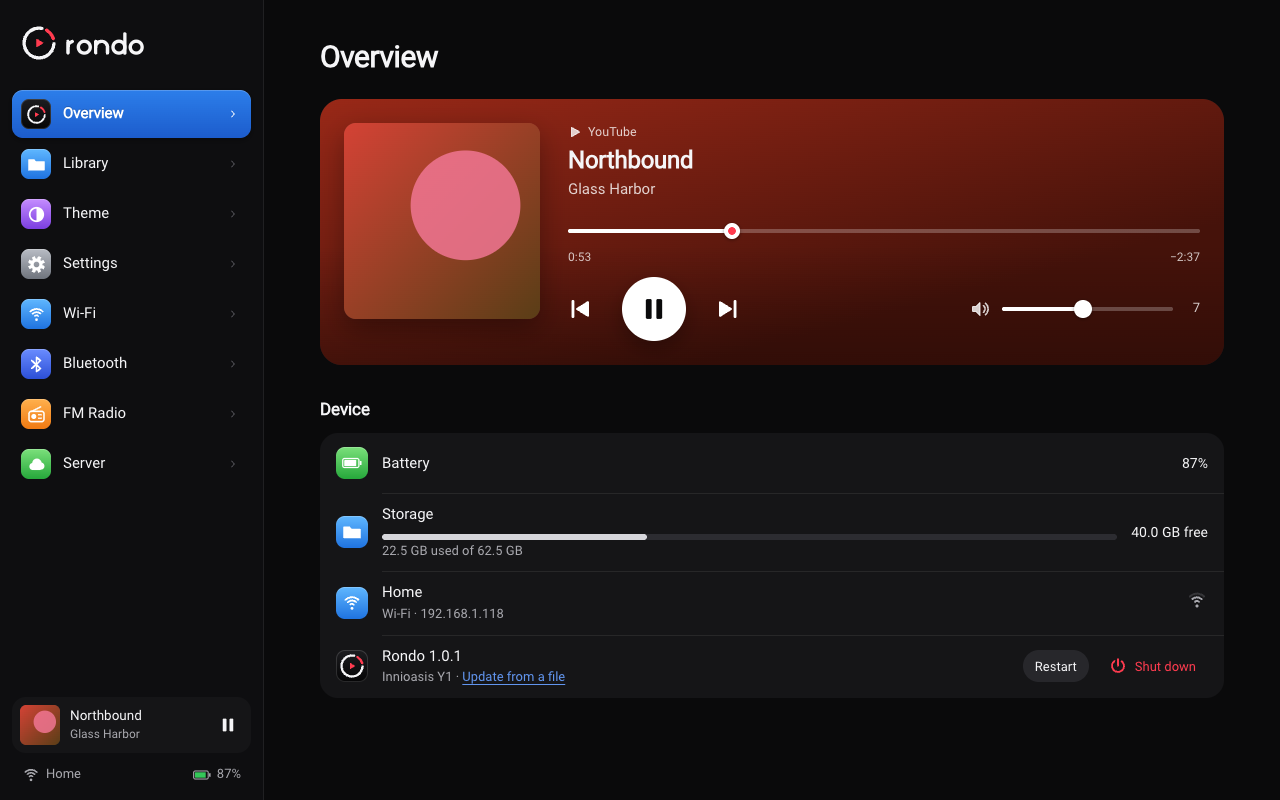
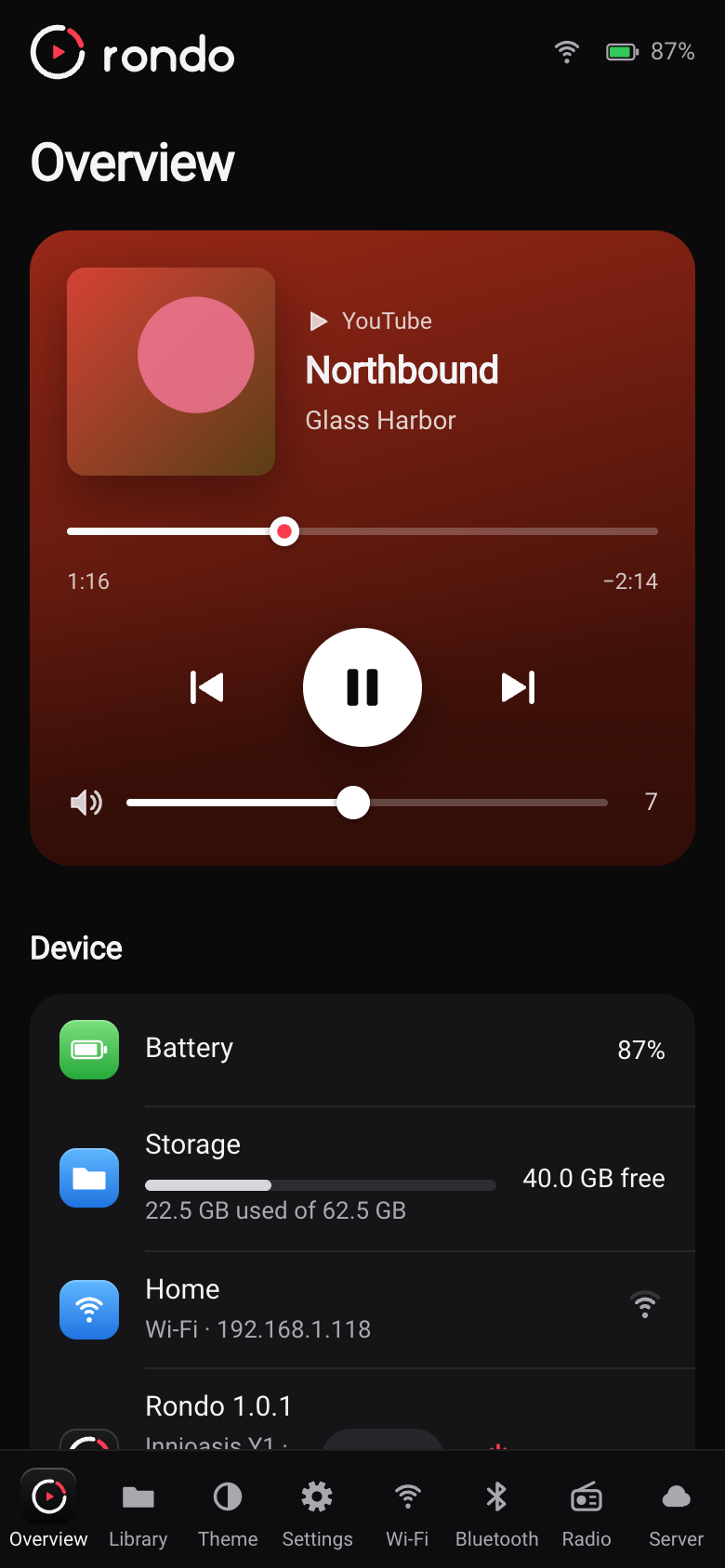
What's playing, with play/pause, skip and a volume slider, plus the battery, how full the card is, the Wi-Fi network and Rondo's version, with Restart and Shut down buttons.
When a newer Rondo is out, a row says so, with Install: your browser downloads the update and sends it to the Y1, which installs it and restarts with everything kept (the dashboard stops with it). Update from a file, under the Rondo row, does the same with an APK you downloaded.
Library
Everything on the card, as songs or videos, with search and sorting by title, artist, album or date added.
- Upload music or videos straight onto the card, several at a time. Expect about 3 MB a
second over the Y1's Wi-Fi.
- Play a song on the Y1, or delete it.
- Rescan after copying files onto the card some other way.
- Playlists: make, rename and delete playlists of songs on the card, add songs (from the
playlist, or Add to playlist in a song's details), put them in order and play them on the Y1. They're the same playlists as in the Y1's Library:
.m3u8files in the card'sPlaylistsfolder.
Theme
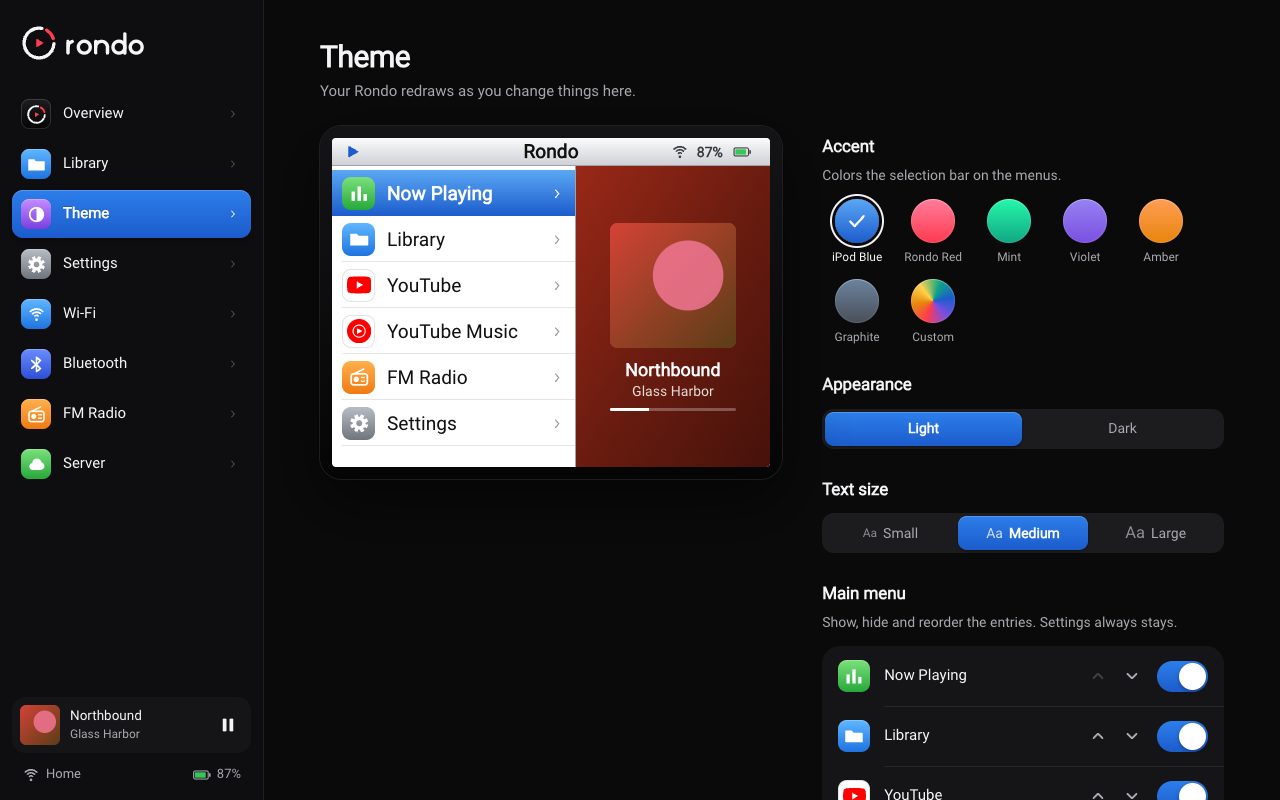
The Y1 redraws while you change things here.
- Accent: the color of the selection bar, from a few presets or any color you pick.
- Appearance: light or dark menus.
- Text size: small, medium or large.
- Main menu: show, hide and reorder the entries. Settings is always there.
Settings
The same settings as on the Y1 (see Using Rondo): video quality, brightness, screen timeout, lyrics, wheel acceleration, wheel vibration and the click sound. The Theme page above matches the Y1's Settings › Theme.
Wi-Fi
The network the Y1 is on, your saved networks and the ones nearby. Join a network with its password, forget one, or refresh the list. Typing a password here is much quicker than on the wheel.
Bluetooth
Turn Bluetooth on or off, search for headphones and speakers, pair and connect them, and forget devices you no longer use. Put the headphones in pairing mode before you search.
FM Radio
What the radio is playing, with the station name and signal strength, and controls to tune, seek up and down, scan the whole band, change the volume, mute, and switch between headphones and the speaker. You can also name, reorder and delete saved stations, save the ones a scan found, and set the region. Wired headphones must be plugged into the Y1, because they're the antenna.
Server
Which Rondo server the Y1 uses, and whether it's reachable. The Y1's own Settings › Server does the same.
- Connect to a server: enter the server's address and the code from its admin page
(Device › Connect a Rondo), then press Connect.
- Connection test: the Y1 calls the server and reports how long it took, whether yt-dlp is
ready and whether an account is connected.
- Use a token instead: only for servers started with an
API_TOKENsetting. Servers set upas in the server guide don't need it.
For developers
The dashboard's API is documented in docs/dev/dashboard-api.md. To work on the page without a Y1, run the mock in tools/dashboard-mock (see Building Rondo).