Setting up a Rondo server
Your music card and the FM radio work without a server. YouTube Music and YouTube need one: a small service that browses YouTube for the Y1 and passes the audio and video through in a form Android 4.2 can play. You run it yourself, so it uses your own YouTube account (or none), and nothing goes through anyone else's computer.
One server serves one Y1. It needs Docker with Compose, about 1 GB of disk, and has to stay on while you listen.
It runs on regular PCs and servers (x86-64) and on 64-bit ARM, such as a Raspberry Pi 4 or 5 with the 64-bit Raspberry Pi OS, or most NAS boxes. 32-bit systems don't work, because the tools it uses to reach YouTube aren't made for them. So far it has been tested on x86-64 only.
Where to run it
| At home | On a VPS | |
|---|---|---|
| Runs on | a computer, NAS or Raspberry Pi on your Wi-Fi (see below) | a rented server, with a domain name |
| The Y1 can use it | on your home Wi-Fi | anywhere it has Wi-Fi |
| Address | http://192.168.1.10:3000 | https://music.example.com |
| Compose file | infra/compose.home.yaml | infra/compose.vps.yaml |
At home is simplest. Pick a VPS if you want YouTube on the Y1 away from home too.
At home
Install Docker, then in a terminal:
git clone https://github.com/jarvissax/rondo.git
cd rondo
docker compose -f infra/compose.home.yaml up -d
Docker downloads the ready-made server (for regular PCs and 64-bit ARM like a Raspberry Pi 4 or 5) and starts it, with a small companion that installs its updates later. When it's running, get the one-time setup code:
docker logs rondo | grep "Rondo setup"You'll also need this computer's address on your network (something like 192.168.1.10). Give it a fixed address in your router's settings, often called a "DHCP reservation". Otherwise it can change one day and the Y1 loses the server.
Your server's address is http://<that address>:3000. Carry on with [Finish the setup](#finish-the-setup).
On a VPS
You need:
- a VPS with Docker; a small one is enough,
- a domain or subdomain whose DNS
Arecord points at the VPS (for examplemusic.example.com), - ports 80 and 443 free on the VPS.
git clone https://github.com/jarvissax/rondo.git
cd rondo
echo "RONDO_DOMAIN=music.example.com" > infra/.env
docker compose -f infra/compose.vps.yaml up -d
docker logs rondo | grep "Rondo setup"
This starts the server and Caddy in front of it. Caddy gets a certificate from Let's Encrypt and speaks the older kind of HTTPS that Android 4.2 still understands (see the comments in infra/Caddyfile). You can check that from any computer:
openssl s_client -connect music.example.com:443 -tls1_2 -cipher ECDHE-RSA-AES128-SHA </dev/nullIt should print a certificate chain and Verify return code: 0 (ok).
Two things that break the Y1's connection:
- Cloudflare's proxy. If your DNS is on Cloudflare, set the record to "DNS only" (grey cloud).
Cloudflare's HTTPS doesn't offer what Android 4.2 needs.
- Another web server's defaults. If the VPS already runs Caddy or nginx on 80/443, use
compose.home.yamlbehind it instead, and give your site thetlssettings frominfra/Caddyfile. For nginx, allow TLS 1.2 withECDHE-RSA-AES128-SHAand use an RSA certificate.
Your server's address is https://music.example.com.
Finish the setup
- Admin page: open
<your server's address>/adminin a browser. Enter the setup code fromthe log and choose an admin password.
- Connect the Y1: on the admin page, go to Device and press Connect a Rondo. It shows
a 6-digit code, good for 10 minutes.
- On the Y1, open Settings › Server › Connect to a server. Type your server's address and,
on the next screen, the code from step 2. (Typing is quicker in the dashboard: open **Settings › Dashboard on the Y1, the address it shows on your phone or computer, then its Server** page.)
Settings › Server on the Y1 now says it's connected; Connection test checks it. YouTube Music and YouTube are ready.
The admin page
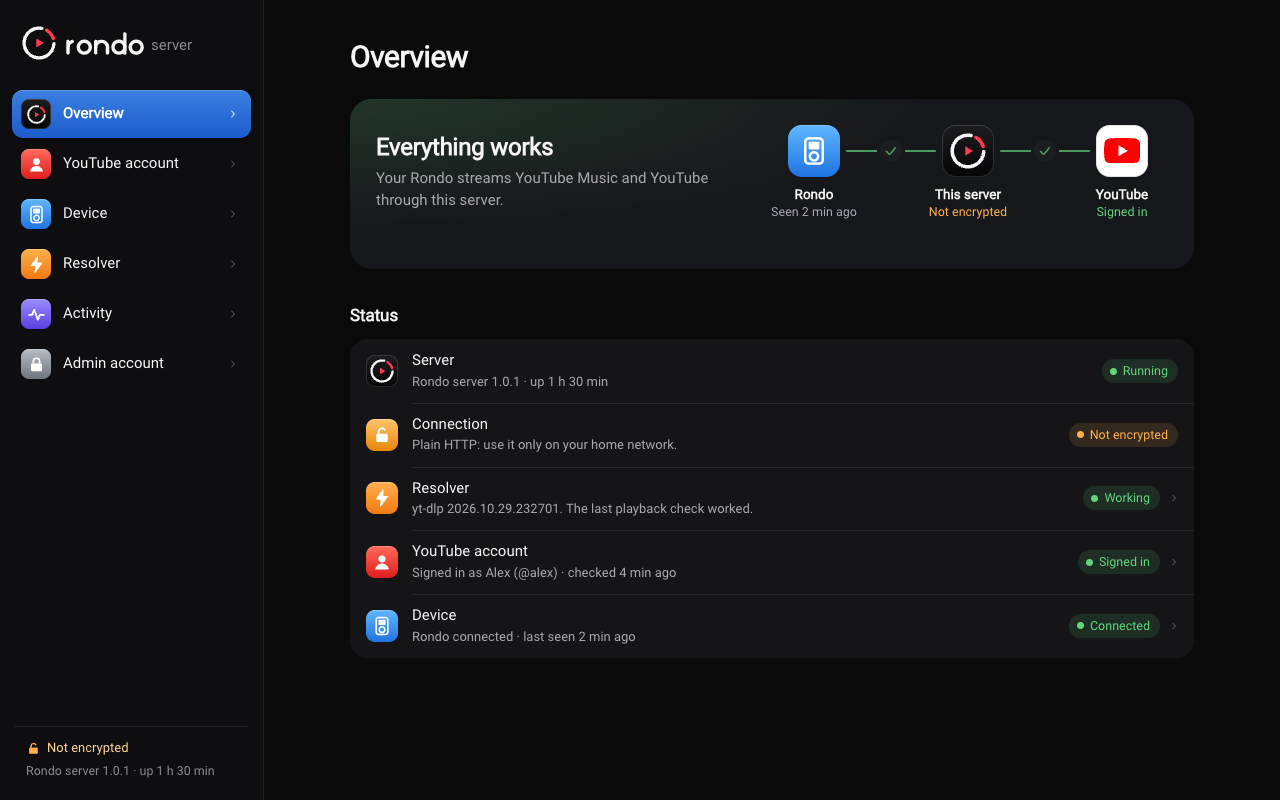
Open <your server's address>/admin any time to see how things are going. A sign-in lasts 12 hours.
- Overview: whether everything works, from the Y1 through the server to YouTube, and what
to do when something doesn't.
- YouTube account: sign in with a code, add or replace cookies.txt, or sign out.
- Device: the connected Y1, when it was last seen, and buttons to connect a different one or
disconnect it.
- Resolver: the yt-dlp version, Update now, and Test playback, which checks that a
video can be found the way the Y1 would ask for it.
- Updates: the Overview says when a newer Rondo or yt-dlp is out. The server checks every 6
hours: Rondo's update page for Rondo, GitHub for yt-dlp.
UPDATE_CHECK=0in its environment turns that off. - Activity: the last 100 warnings and errors, newest first.
- Admin account: change the password or sign out.
Your YouTube account (optional)
Without an account you can still search and play anything, open artists, albums and public playlists, and see a general home page. Rondo hides Library, Subscriptions and History until an account is connected.
| No account | Sign in with a code | Plus cookies.txt | |
|---|---|---|---|
| Search, play, artists, albums, public playlists | yes | yes | yes |
| YouTube home | general | yours | yours |
| YouTube subscriptions and history | hidden | yes | yes |
| YouTube Music playlists and liked songs | hidden | yes | yes |
| YouTube Music home and history | general | general | yours |
Sign in with a code works like signing in a smart TV. On the admin page, go to **YouTube account and press Get a code**. Open google.com/device on your phone, enter the code and allow access. It renews itself and keeps working when you use the same account in a browser. **Sign out** on the admin page undoes it, at Google too.
cookies.txt adds YouTube Music's own home and history. YouTube only gives those to a browser session:
- Open a private window and sign in at youtube.com. A separate Google account for Rondo is
the safest choice, because YouTube sometimes flags accounts used by servers.
- Export the cookies with a "cookies.txt" browser extension (Netscape format).
- Close the private window right away. If the browser keeps using that session, Google
replaces it and the server gets signed out.
- On the admin page, press Upload cookies.txt. It says who's signed in when it worked, and
Activity warns you if the cookies stop working later.
Keeping it running
- yt-dlp updates itself every day. When YouTube changes something and playback stops, press
Update now on the admin page's Resolver page.
- Updating the server: when a newer Rondo is out, the admin page's Overview says so. Press
Update: the server downloads the new version and restarts on it, in a minute or two. Your admin password, account and connected Y1 stay; sign in to the admin page again afterwards. This is the job of the
rondo-updatercontainer next to the server, which needs Docker's socket and only ever touches therondocontainer. If you'd rather update by hand:
  cd rondo
  git pull
  docker compose -f infra/compose.home.yaml pull           # or compose.vps.yaml
  docker compose -f infra/compose.home.yaml up -d
A server set up before 1.0.2 built itself and has no updater yet; those four lines move it to the ready-made images, with Update from then on. Your admin password, account and connected Y1 are kept on a Docker volume and survive updates either way.
- Updating the Y1: the server also hands the Y1 its updates. Settings › Software update on
the Y1 shows a newer Rondo and installs it; the server fetches it from Rondo's update page and passes it on. When a release needs a new firmware, the Y1 says so and points to Innioasis Updater CE instead.
- The server and Rondo share a version number. When the admin page says a newer Rondo is out,
update the server too (above), even if only the Y1 changed; that keeps them in step.
- One Y1 per server. Connecting another Rondo disconnects the previous one.
- Forgot the admin password? Remove it and restart. The server prints a new setup code, and
your Y1 stays connected:
  docker exec rondo node -e 'const f="/data/config.json",fs=require("fs"),d=JSON.parse(fs.readFileSync(f));delete d.adminHash;fs.writeFileSync(f,JSON.stringify(d,null,2))'
  docker restart rondo
  docker logs rondo | grep "Rondo setup"
Privacy
The server doesn't store audio or video; it passes streams through as they play. Your cookies and the code sign-in stay on the server's Docker volume, readable only by the server, and are never shown or written to the logs. The Y1 talks only to your server, never to Google.
How the server works, and its API, are described in docs/dev/server-api.md.