Installing Rondo
Rondo is a firmware for the Innioasis Y1: you install it the way you'd install Rockbox or the Y1's original software, with Innioasis Updater CE. The Y1 then starts straight into Rondo. After that, updates take a minute and keep everything (see Updating).
Before you start
- Your Y1 has to be a Type A. That's a Y1 that shipped with software 2.0.0 or later; the
Updater asks which type yours is. If yours came with software older than 2.0, or you bought it between 2024 and May 2025, treat it as a Type B: Rondo isn't for it yet, and a Type A firmware can leave a Type B unable to start.
- Installing replaces everything on the Y1 itself: the original player, Rockbox, settings.
Your microSD card isn't touched, so your music stays where it is.
- Charge the Y1 to at least half.
- Use a USB-C cable that carries data. Some charging cables don't, and nothing will work
with them.
Install with Innioasis Updater CE
- Download Innioasis Updater CE for your computer from its
guide page, which shows the download and drivers for your system. On Windows, let it install its drivers and restart the computer once before the first install.
- Open it, choose Y1 and Type A (not sure? see Before you start).
- In the software list, choose Rondo, then Install.
- Do what the Updater asks: switch the Y1 completely off, then plug it in. The Updater installs
Rondo by itself in about 7 minutes. Don't unplug anything until it says it's done.
- Press the Y1's Power button to switch it on. The first start takes a couple of minutes
(Android prepares every app once); later ones take about 30 seconds. You'll see Rondo's logo, its spinning click wheel, and then the main menu.
From a file
The same thing, with the file downloaded by hand:
- Download
rom.zipfrom Rondo's latest release. - In Innioasis Updater CE, open Settings, choose Install from a file…, and pick the
rom.zipyou downloaded. - Press Install / Restore and follow steps 4 and 5 above.
The Updater deletes the rom.zip once it has unpacked it, so download it again if you need it later.
First start
- Wi-Fi: Settings › Wi-Fi. Turn the wheel to pick your network and type the password on the
on-screen keyboard. Only 2.4 GHz networks show up.
- Your music: plug the Y1 into your computer. Rondo asks whether to use it as a USB drive;
choose it, and the microSD card shows up on your computer. Copy music and videos onto it (any folders), eject it on the computer, then choose Turn off USB drive on the Y1. Music from any music player works: FLAC, MP3, M4A, AAC, OGG, Opus and WAV.
- YouTube Music and YouTube: set up a server, then connect the Y1 to it in
Settings › Server › Connect to a server.
Then see Using Rondo for what the wheel and each button do.
Updating Rondo
A new Rondo comes as a small update you install over the one you have, without flashing the Y1 again. Your settings, Wi-Fi, server connection, playlists and music all stay. Use whichever is handiest:
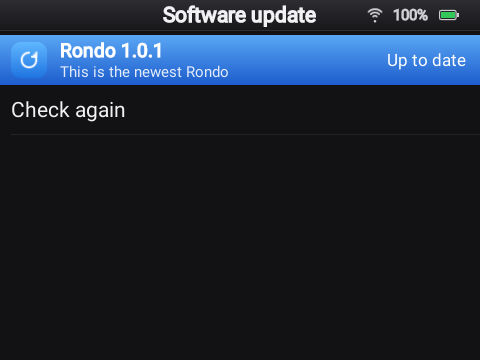
- On the Y1, over Wi-Fi: Settings › Software update shows when a newer Rondo is out.
Choose Install now; Rondo downloads it (through your server), installs it and restarts by itself. This needs a Rondo server.
- From the dashboard, over Wi-Fi: open Settings › Dashboard on the Y1 and the page on
your phone or computer. The Overview says when a newer Rondo is out; press Install. No server needed. Update from a file, under the Rondo row, installs an APK you downloaded.
- Over USB: open jarvissax.github.io/rondo in
Chrome or Edge, plug the Y1 in, press Connect Y1, then Update. Nothing to install on the computer. With adb, it's
adb install -r rondo-<version>.apk.
Only Rondo's own releases install this way: Android checks that an update is signed with the same key as the Rondo in the firmware.
Now and then a release also changes the firmware around Rondo (a new permission, the boot screen or Android's settings, for example). The Y1, the dashboard and the update page recognize such a release: instead of Install, they say it needs a new firmware. Install it with Innioasis Updater CE, the same way as the first time. If the Updater offers Keep Data, choose it and your settings, Wi-Fi and server connection stay too; without it they're reset (your music on the card is never touched).
Going back
Rondo doesn't lock anything. To return to the Y1's original software, or to try Rockbox or another firmware, choose it in Innioasis Updater CE and install it the same way. **Original Software** brings the Y1 back to how it came. Your microSD card stays as it is.