

What it adds
[!NOTE] There's a "better-Y" tab inside the Options menu — adjust the settings marked with ⚙️ to suit your needs.
Within this tab press and hold the top button on the desired option to display its description and how it works.
Metadata
⚙️ Track numbers from metadata — inside albums
It applies whatever the sort is: if sorted by file name - the numbers won't be in order.
If no track numbers are specified for the songs on the album, the stock numbers are used instead.
If track numbers are specified for only some of the songs, the songs without numbers will be moved to the bottom, and a "#" will appear in place of their track numbers.
⚙️ Split artists that are divided by commas and semicolons
System of a Down, RZA
System of a Down; RZA
becomes two different artists, "System of a Down" and "RZA".
To keep an artist whose name contains a comma, use a semicolon — it takes priority:
Tyler, The Creator; Frank Oceanbecomes two different artists, "Tyler, The Creator" and "Frank Ocean".
The same can be done with commas alone by adding the artist to /better-Y/comma_artists.txt on the SD card:
Tyler, The Creator, Frank Oceanbecomes two different artists, "Tyler, The Creator" and "Frank Ocean".
⚙️ Split genres that are divided by commas, semicolons and slashes
Indie Rock, Acoustic
Indie Rock; Acoustic
Indie Rock / Acoustic
Indie Rock/Acoustic
becomes two different genres, "Indie Rock" and "Acoustic".
● ⚙️ Song titles from metadata — instead of file names
Album artist metadata tag support
Shown under the album names. If empty — the Artist tag is used instead.
External covers support — cover.* and folder.*
cover.jpg applies to every song with no embedded cover in that particular folder where it sits.
folder.jpg applies to every song with no embedded cover in that particular folder where it sits AND every folder inside of that folder.
Both come in .jpg, .jpeg and .png. Embedded cover > cover.jpg > folder.jpg, and the nearer folder always wins. For example:
You can put folder.jpg into /Eminem/ and every song without an embedded cover in that directory will be using it. You can put cover.jpg into /Eminem/Albums/The Eminem Show/ and it will override the effect of folder.jpg. Meanwhile, songs with embedded covers ignore both of them and use their own cover.
For the album's thumbnails the order is the other way round — folder.* → cover.* → the embedded picture — because a folder.jpg was put there to stand for the whole album, while an embedded cover belongs to one song. "Set as album thumbnail" overrides all of it.
Disk numbers support — divide an album into CDs or vinyl Sides
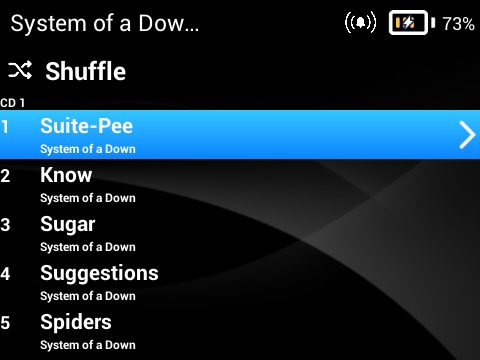
The list of songs in an album is divided into CD1, CD2 or Side A, Side B
|
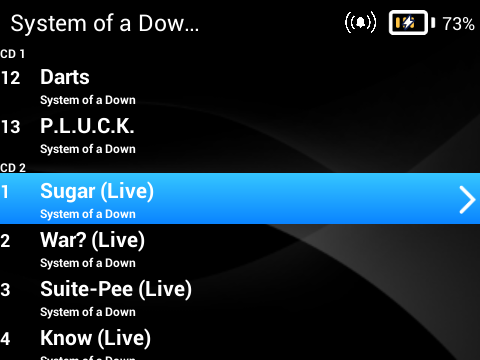
You can achieve it either by splitting an album into different folders (CD1, CD2, Side A, Side B, Disk 1, Disk 2, etc.) or by using a disk number tag in the metadata
|
Now Playing
⚙️ Interactive buttons — Like, Shuffle, Repeat, Lyrics, AB Loop, Queue; Bookmark, Playback speed, Sleep timer
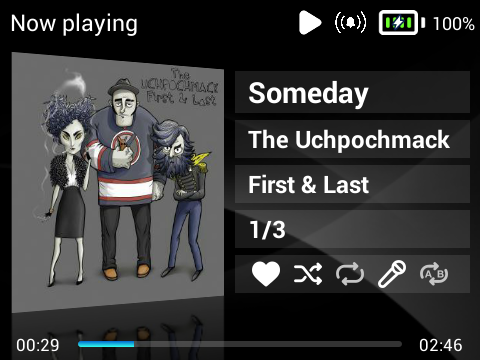
The set of interactive buttons changes depending on the "Top button hold" choice
|
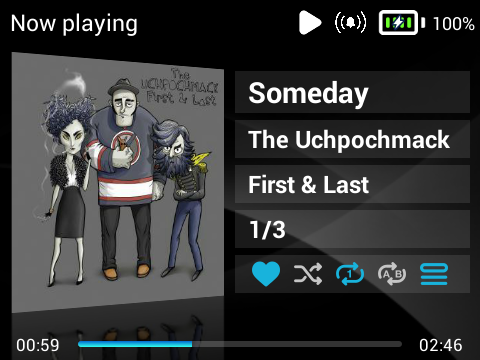
Supports Light / Dark / Theme colors
|
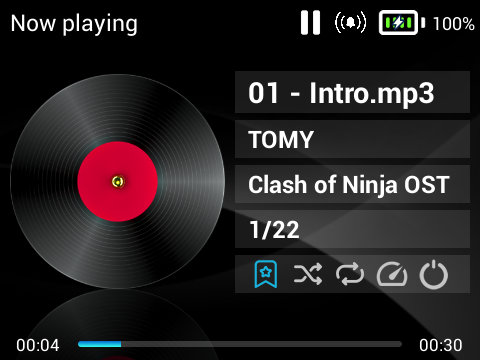
Bookmark, Playback speed and Sleep timer are exclusive to the audiobook player
|
|
⚙️ Album cover changes — they're bigger, automatic crop and fill added, broken tilt is fixed; option to disable the tilt
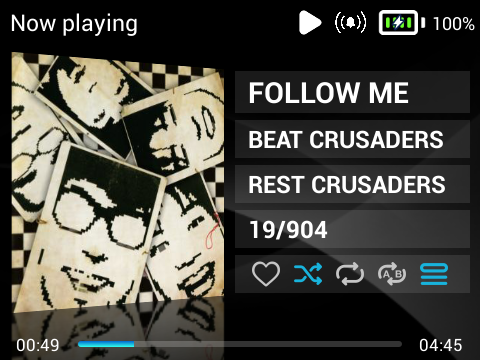
Cover tilt On
|
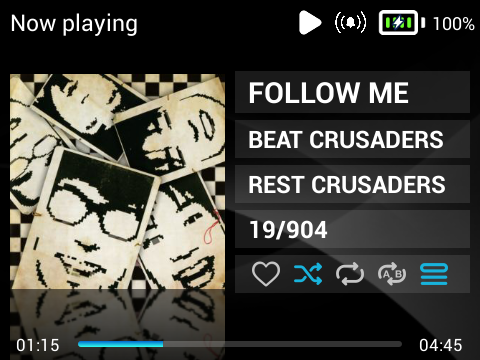
Cover tilt Off
|
⚙️ A clean Now Playing screen — hide artists and move them into the title
Two separate options: "Show only the first artist" and "Move hidden artists to the title" (the latter can be enabled only when the former is).
Tree, Shelf Nunny, Lena Kuhn — Peoplewith "Move hidden artists" Off becomes
Tree — Peoplewith "Move hidden artists" On becomes
Tree — People (feat. Shelf Nunny, Lena Kuhn)Very convenient: that way you can have separated artists in the Artists tab and a clean Now Playing screen at the same time, without compromises and without editing metadata.
⚙️ Option to change text and lyrics color — Light / Dark / Theme color
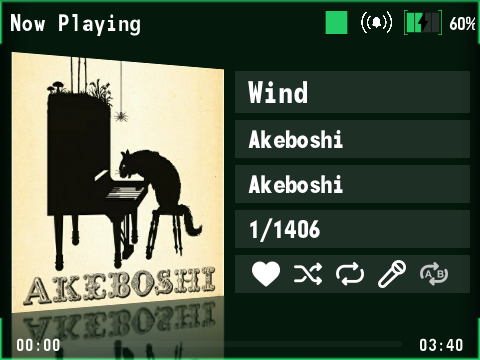
Icons and text color changed to `Light`
|
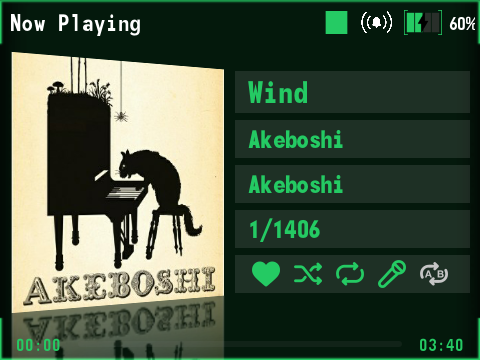
Icons and text color changed to `Theme color`
|
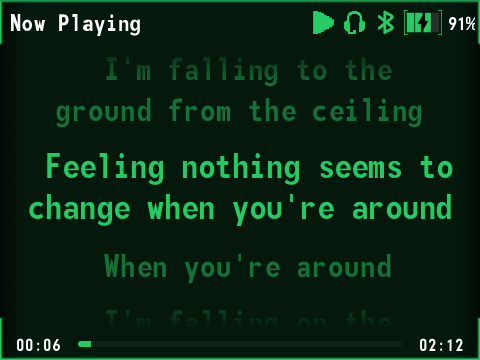
Lyrics color changed to `Theme color`
|
|
● ⚙️ Top button hold to open Lyrics / Queue / Bookmark / AB Loop
● ⚙️ Long artists/albums/titles scroll
● Lyrics fix — long lines no longer extend beyond the edges of the screen
Menu
⚙️ Alphabetical scroll
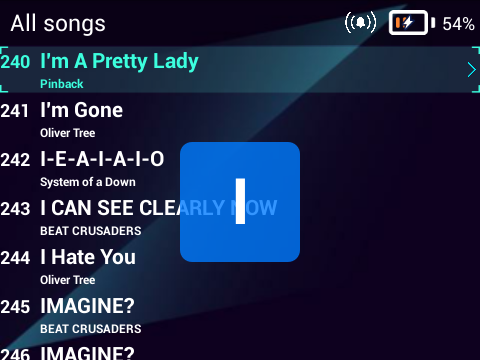
Starts after a number of wheel scrolls you choose
|
⚙️ Selection follows currently playing song
When the screen is locked, and while the scroll wheel is at rest, the selection automatically follows the song currently playing
The selection switches to manual mode as soon as the scroll wheel is used.
Once scrolling stops, a timer starts; after it expires, the selection moves to the currently playing song, and automatic mode resumes.
Opening the context menu or MultiSelect mode resets the timer and pauses it.
When you open the list containing the currently playing song, the selection immediately moves to it. Exiting the player also sets the selection to it.
⚙️ Show songs only by the selected artist inside Artists → Album
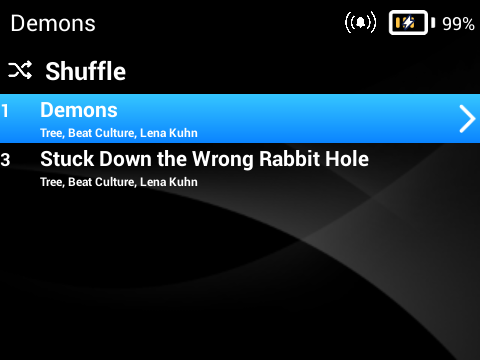
On, Beat Culture artist is selected
|
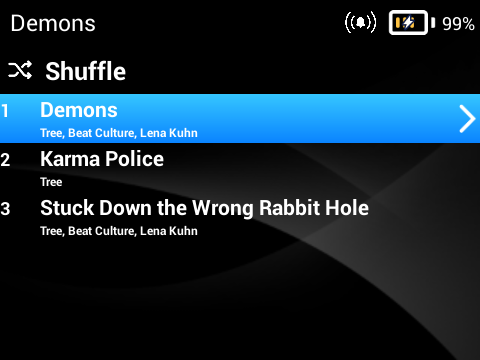
Off, Beat Culture artist is selected
|
⚙️ Main menu and Settings margins fixes
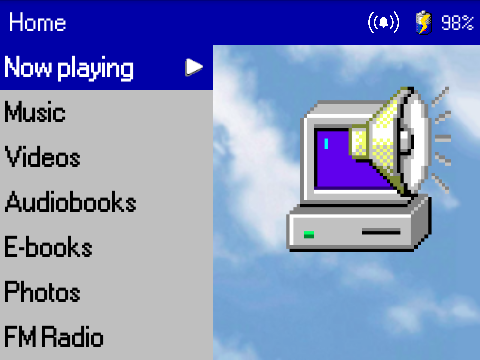
On, fixed margins
|
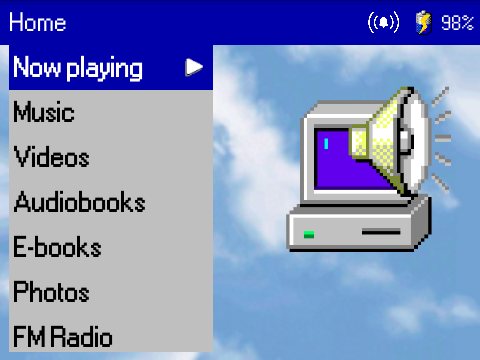
Off, stock margins
|
| Worth turning off with themes whose backgrounds are drawn for stock margins — bundled Melody Munchkin, for example. | |
⚙️ Release year in album names
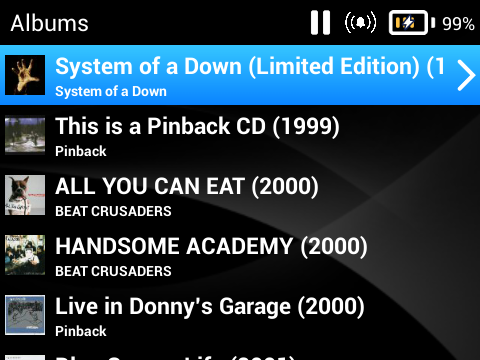
Show albums instead of songs when opening an artist page
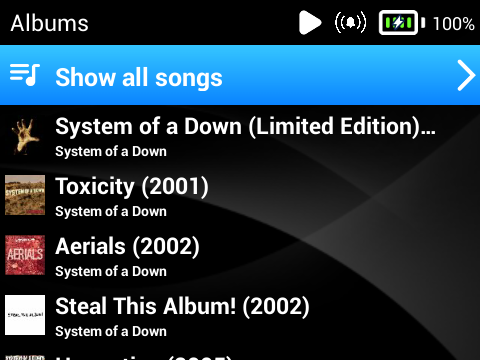
|
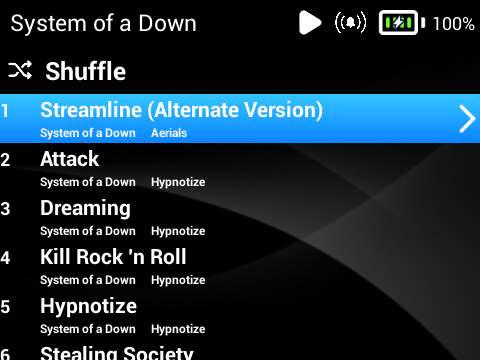
|
| You can use "Show all songs" button to replicate stock behaviour. | |
"Show all songs" and "Shuffle" buttons in Folders
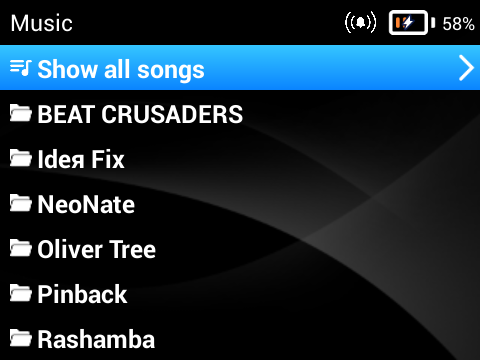
A folder holding sub-folders gets "Show all songs"
|
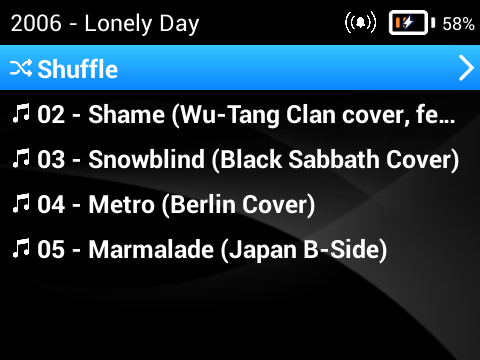
A folder holding only songs gets "Shuffle"
|
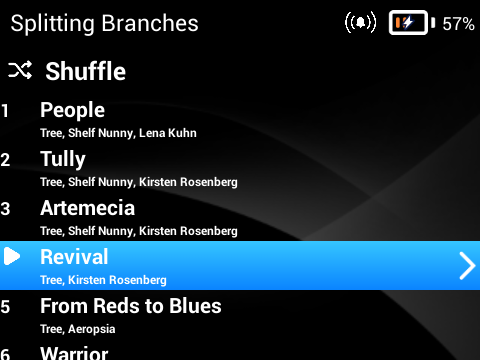
Currently playing song indicator
|
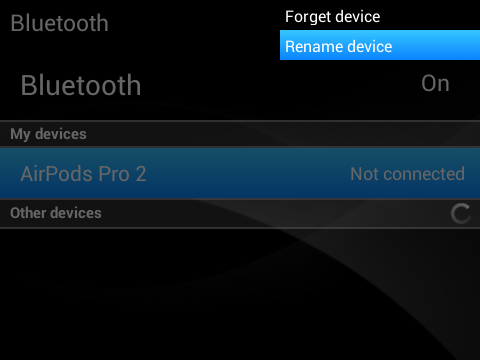
Option to rename your Bluetooth devices
|
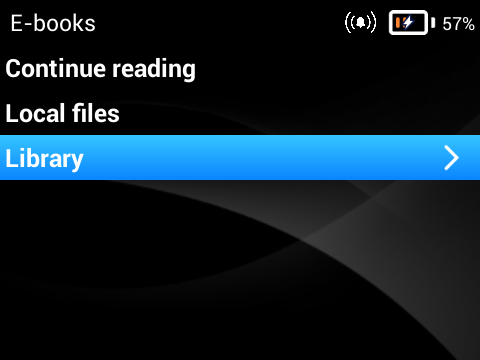
Library has been moved to its own section in E-books
|
Manual album thumbnail selection
|
Thumbnail from CD1 is selected by default
|
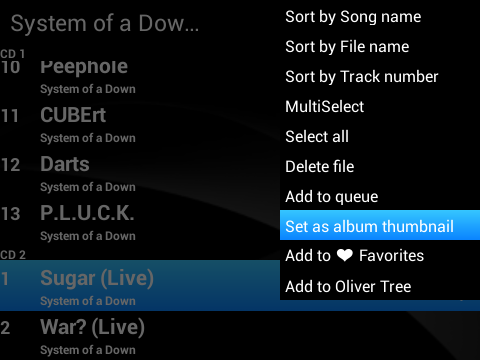
Changing the thumbnail
|
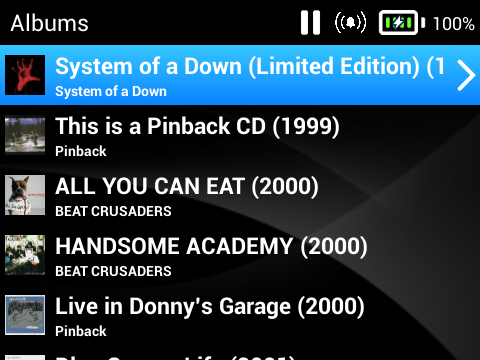
Thumbnail from CD2 is selected
|
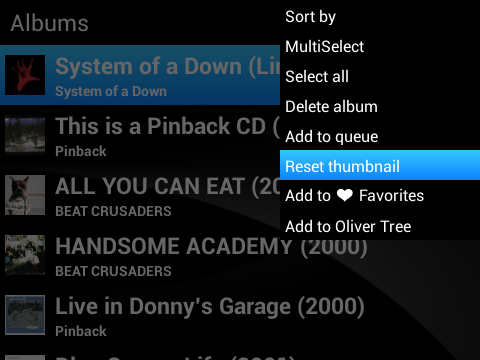
Resetting to default, only visible if the thumbnail was manually set
|
● Optimized album cover previews — no more crashes, no need to resize covers manually
● "Open album", "Open artist", "Open source" buttons in context menu
● "Sort by Date added" — for songs within playlists
● "Sort by Release year" — for albums
● Reboot button
● /Music/ and /Videos/ are opened by default in Folders — instead of the SD card root
● Genres and Search menu rework — revised to reflect the changes and align with the other sections
System
⚙️ Favorites system
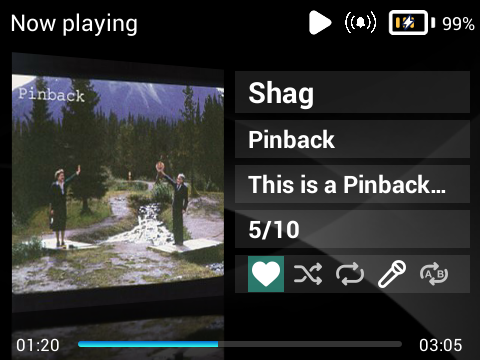
You can add and remove songs from your favorites by tapping the heart icon in Now Playing
|
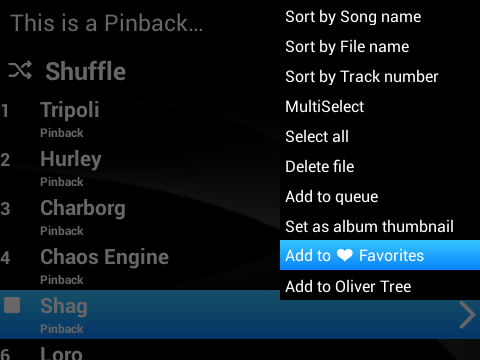
Alternatively, you can add songs to the "Favorites" playlist just as you would to any other playlist; the likes will be added or removed automatically
|
| When you turn off this setting, the playlist and the likes you've given aren't deleted - they're simply hidden | |
⚙️ After deleting a song also delete the folder it was stored in — only if it is empty
When songs or albums are deleted, the folders that held them are deleted as well, if they are left empty.
A folder holding nothing but external covers (cover.* and folder.*), lyrics (*.lrc) and empty folders counts as empty and goes too.
This does not apply to the Folders section, where deleting works as usual.
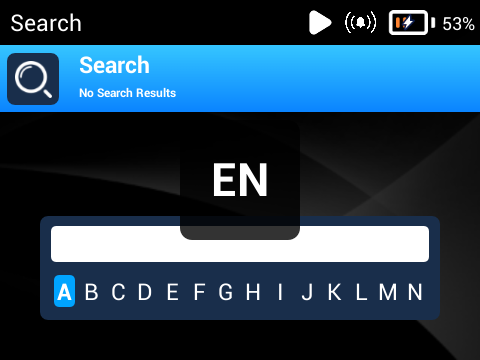
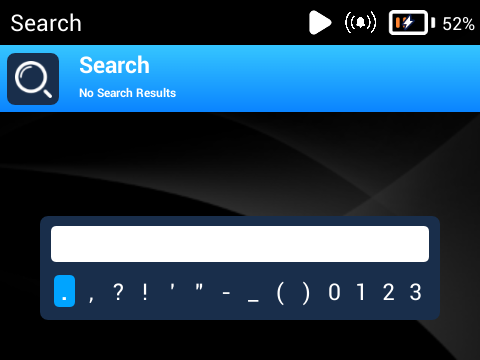
⚙️ Better keyboard and typing — case switch, caps lock, three layouts
|
|
- Top button hold — change the keyboard layout
- Play button press — switch between uppercase/lowercase letters
- Play button hold — CapsLock
⚙️ Data backup — settings, likes, playlists, bookmarks and reading progress
Updating the firmware with an updater wipes the app data, but not the SD card. "Data backup" saves your data to /better-Y/backup/ on the SD card and loads it back.
Along with the better-Y settings, the archive keeps the theme, the stock settings, the library with playlists, bookmarks and audiobook progress. Bluetooth devices can't be saved.
The five newest archives are kept. After loading one the player restarts.
● ⚙️ Disable auto screen lock while reading lyrics and books
Play queue implementation
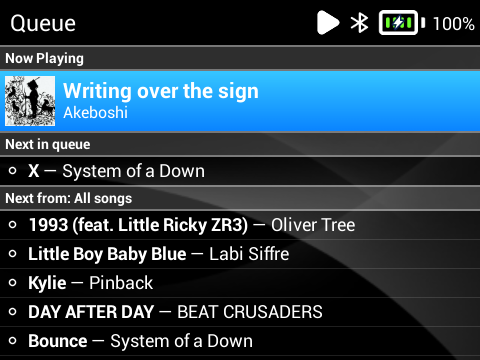
Depending on your settings, you can open the queue by pressing the top button in "Now Playing" screen or by using the corresponding interactive button
|
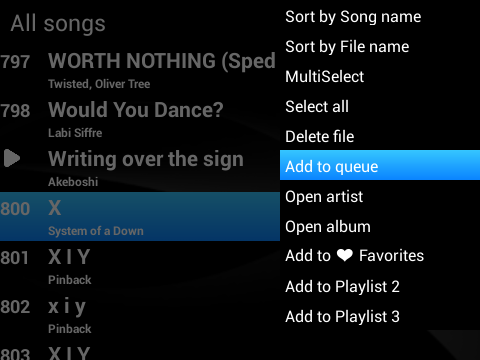
You can add a song to the queue using the 'Add to Queue' button in the context menu, which appears almost everywhere. A queued track slots in right after the current song
|
Extended themes support — themes work as usual, plus screens that were previously hardcoded now use the theme designs and everything new adapts to them
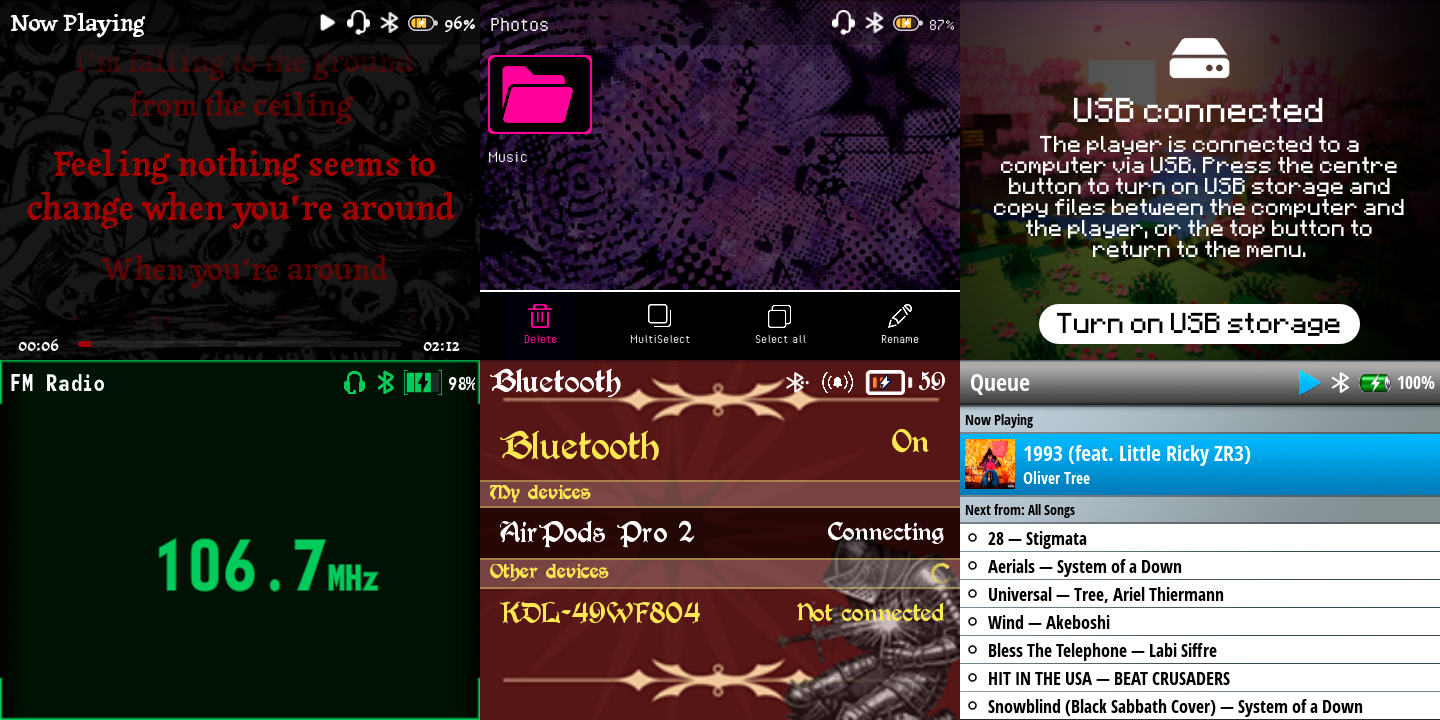
|
A proper cache system — no more text and images blinking, system works faster
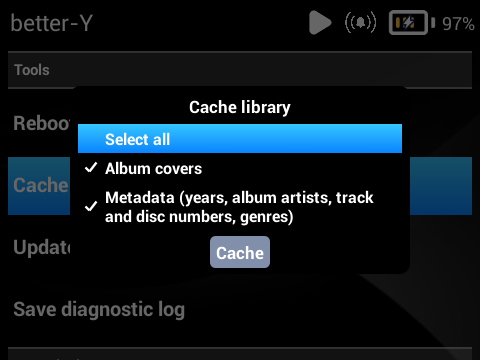
The cache builds itself as you use the player, and "Cache library" button does the whole library in one go
|
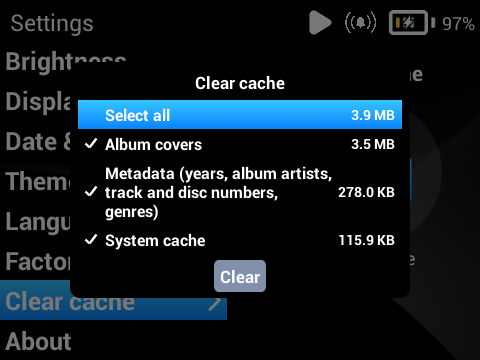
It costs roughly 4 MB per 1000 songs. It may be larger even with the same number of songs, depending on the number of albums
|
Existing song navigation logic changes
The track-switching functionality, repeat and shuffle behavior have been updated.
Also, selecting a currently playing song from the list no longer starts it from the beginning
● Based on 3.1.2 firmware — AirPods fix included
● Scroll and overall optimizations — every menu is faster and more responsive, the library scans quicker
● Double press of the play button opens "Now Playing" — from everywhere
● "Update library" — re-reads metadata and cover art for songs already in the library if you have changed it
● Scroll wheel is silent while the screen is off — the player no longer clicks in a pocket when Key lock is off
● Force reboot — press and hold the top + bottom buttons
● "File extensions" setting fix — folder names are no longer erased after a dot
● UI, translations and text fixes
● Improved support for text encodings — for Cyrillic, Greek, Hebrew and Thai
● Russian now supports fonts from custom themes
● And a lot of other minor fixes and corrections
Before you install
- Innioasis Y1, Type A only
- If you have used any other custom firmware, a clean install is recommended
Install
- Options A, B and C (without step 4) write the whole firmware,
usrdataincluded: settings, playlists, likes, reading progress, bookmarks will be lost. Your files on the SD card are untouched. - If you have stock 3.0.7 or 3.1.2 firmware installed (anything lower wasn't tested) and want to keep your
usrdata- use Option C with step 4.
Option A — Updater CE by Ryan Specter
Install Updater CE, then select better-Y from the Software drop down menu and select "Install/Restore" to be guided through the install process.
Option B — Official Innioasis Updater (rom.zip)
Download rom.zip from the Releases page, open the updater, press "Choose Package", choose the archive, press "Start Flash" and follow instructions on screen.
[!NOTE] If you've ever flashed a ROM using the Official Innioasis Updater, make sure there isn't a
.rom_extractedfolder next to therom.zipfile. Otherwise, the old files from that folder will be flashed instead of the new ones fromrom.zip.
Option C — SP Flash Tool (rom.zip)
- Download
rom.zipfrom the Releases page, extract it - Open the SP Flash Tool, press "choose" and locate Scatter-loading File (
MT6572_Android_scatter.txt) - Make sure that "Download Only" is set
- (Optional, if you already have stock 3.0.7 or 3.1.2 installed) Uncheck everything except for ANDROID (
system.img) - Disconnect the player from the PC (if it's connected), then turn it off
- Press Download
- Connect the player to the PC and wait for the installation to complete
Update
[!NOTE] To move to a newer better-Y version with all of your settings, playlists, likes, reading progress and bookmarks, use one of the two options below.
Option 1 — Updater CE / Official Innioasis Updater / SP Flash Tool
- Available starting with version 1.1.0.
- Before installing a new version, use the
Data backupbutton in the better-Y menu to save your data - Install a new version using any option you prefer from the Install section
- After a successful installation, use this same button to restore your settings from the saved backup
Option 2 — adb install (better-Y_3.1.2_<version>.apk)
- Download platform-tools and extract the files to a folder
- Place
better-Y_3.1.2_<version>.apkin that same folder - Connect the player to your PC and open a terminal in that folder
- Run the following command:
adb install -r better-Y_3.1.2_<version>.apk && adb rebootIf you're using PowerShell, use this one instead:
./adb install -r better-Y_3.1.2_<version>.apk; ./adb rebootOption 3 — SP Flash Tool (system.img only)
Go to Install and follow all of the Option C steps (including 4).
[!WARNING] If you have ever updated with Option 2, switching to Option 3 deletes your user data - your settings, playlists, likes, reading progress and bookmarks are lost. Your files on the SD card are untouched.
Going the other way is OK: after updating with Option 3 you may keep updating with Option 2.
Reporting a bug
- After the bug occurs, open "better-Y" → [Tools] → "Save diagnostic log". Create an issue, describe the bug and attach the log file. If possible, include the steps to reproduce it.
Building it yourself
Step 1 — collect the inputs
com.innioasis.y1_3.1.2.apkfrom your own device or from stock 3.1.2 firmware (/system/app/) —MD5
C342B4A8DEAEF2700FE8EBBB2C299F5C, 58 997 249 bytes;- apktool 2.11.1 exactly — a unified diff only applies to an identically decompiled tree;
- a JDK, plus
zipalignandapksignerfrom any Android build-tools; - the AOSP platform testkey
platform.pk8andplatform.x509.pem, intobuild/keys/. - the stock 3.1.2 firmware archive, in
ROM/under exactly this name:y1-community_y1-stock-rom_Latest-3.1.2.zip— the same one Updater CE installs as clean firmware; - a Linux userland for the image work —
python3,simg2img,debugfsande2fsck. On Windows,WSL covers it.
Step 2 — build the APK
apktool d -f -o tree com.innioasis.y1_3.1.2.apk   # decompile the stock launcher
./build/patch.sh --apply tree                     # apply this repository onto it
./build/build.sh                                  # build, sign, verify
On Windows the same three steps are patch.ps1 -Apply tree and build.ps1 — the two sets of scripts do the same work in the same order. Each looks for its tools in an environment variable first, then under build/tools and build/sdk, then on PATH; the comment at the top of build/lib.sh names them. The finished APK lands in build/out/.
Step 3 — build rom.zip
./build/rom.sh # on Windows: build\rom.ps1It takes the newest APK from build/out, puts it into the system.img of the community base (debugfs, no mounting and no root), packs that together with the rest of the factory 3.1.2 set, and writes build/rom-out/rom.zip. Every step checks itself: the launcher is read back out of the image and compared with the APK, e2fsck runs over the result, and the sparse image is expanded again and compared byte for byte with the raw one. It takes about a minute.
Step 4 — install it
Changing the mod's own code
The mod's own classes are written in Java, under build/ipp-java/src; the .smali in files/smali_classes2/ is what they compile to, and it ships with the set so that the build above needs nothing beyond apktool and the signer. Edit the Java and there is one more step in front of the build:
./build/ipp-java.sh                               # compile the Java sources into smali
./build/build.sh                                  # build, sign, verify
Run it after a first successful build, never before it: ipp-java compiles against stubs it makes with dex2jar out of the newest APK in build/out, and a fresh clone has none — it stops with No APK in build/out to generate stubs from. It also wants d8, baksmali, dex2jar and an API 17 android.jar on top of the JDK; the comment at the top of build/lib.sh names the environment variables that point at them.
What's in this repository
The mod is a set of edits to a stock launcher. So what you get is the difference and the exact recipe to reproduce it:
files/ | code and resources, plus the stock binaries the mod replaces |
stock.diff | a unified diff of the stock files |
delete.txt | stock files the mod removes |
manifest.json | the pinned inputs: apktool version, the factory APK's name, size and MD5 |
build/ | the build scripts, in PowerShell and bash alike, and the Java sources they compile |
build/rom-tools/ | the python that builds the boot images |
screenshots/ | the pictures on this page |
LICENSE | MIT, and what it does and does not cover |
./build/patch.sh --verify (or patch.ps1 -Verify) proves the set is complete: it decompiles the factory APK, applies everything here, and compares the result against the tree you actually build from.
License
better-Y is released under the MIT License, Copyright (c) 2026 better-Y Team. That license covers only what was written for this project — the code and resources added to the launcher, and the build scripts here.
Everything else keeps its own. The Innioasis Y1 launcher and the firmware it ships with are proprietary software of INNIOASIS; all rights in that code belong to its authors, this project only modifies it, and no license of ours applies to any of it. The same goes for the third-party libraries inside the launcher, which carry the licenses of their own authors. LICENSE says in full which part is which. No affiliation with or endorsement by INNIOASIS is claimed.
The software is provided "as is", without warranty of any kind. Installing it means replacing your device's system partition, and you do so at your own risk: in no event are the authors liable for any damage, data loss or bricked hardware arising from it.