Restore · Innioasis Y1
A clear route back to Original Software.
Use this when you want to leave a custom software, recover a player that does not start, or simply return to the stock interface.
From Rockbox or another custom software
Once the relevant Windows, macOS, or Linux setup is ready, Updater uses the same guided install for a stock restore as it does for a custom software install. You do not need to manually delete Rockbox or another custom software's files first.
- Open Updater on Windows, macOS, or Linux.
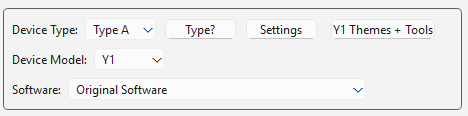
- Set Device Model to Y1.
- Choose Original Software in Software.
- Choose the latest stable Y1 release. The usual manual package is
rom.zip. Type A covers Y1 players that shipped with Original Software version 2.0.0 or later; Type B covers players that shipped with an earlier version of the Original Software and may use a more specific package name. - Click Install / Restore and wait for the package to extract.
Connect the Y1 at the prompt
The operating system changes the setup around Updater, not the restore journey itself. On every platform, wait for the live prompt before connecting.
- Power the player fully off when Updater asks.
- Connect the USB data cable only at the prompt.
- Do not touch the player while the install runs.
- Disconnect after the success message and start the Y1.
If it still does not start
Repeat the restore once with the model, Type, and release checked. If Updater fails before the USB prompt, inspect the computer setup, driver or permissions, data cable, and extracted files. If it fails after detecting the Y1, use the troubleshooting guide before moving to manual SP Flash Tool or MTKClient recovery.