Troubleshooting
Find the point where the install stopped.
The fastest fix depends on whether Updater stopped while preparing files, while waiting for USB, or after it detected the player.
It stopped before the USB prompt
This is a computer-side problem, not a cable timing problem. Re-check that the model is correct, re-extract the selected package, and try Install / Restore again. If the release list is empty, use the checked-in firmware directory and the project release page.
It cannot connect to the player
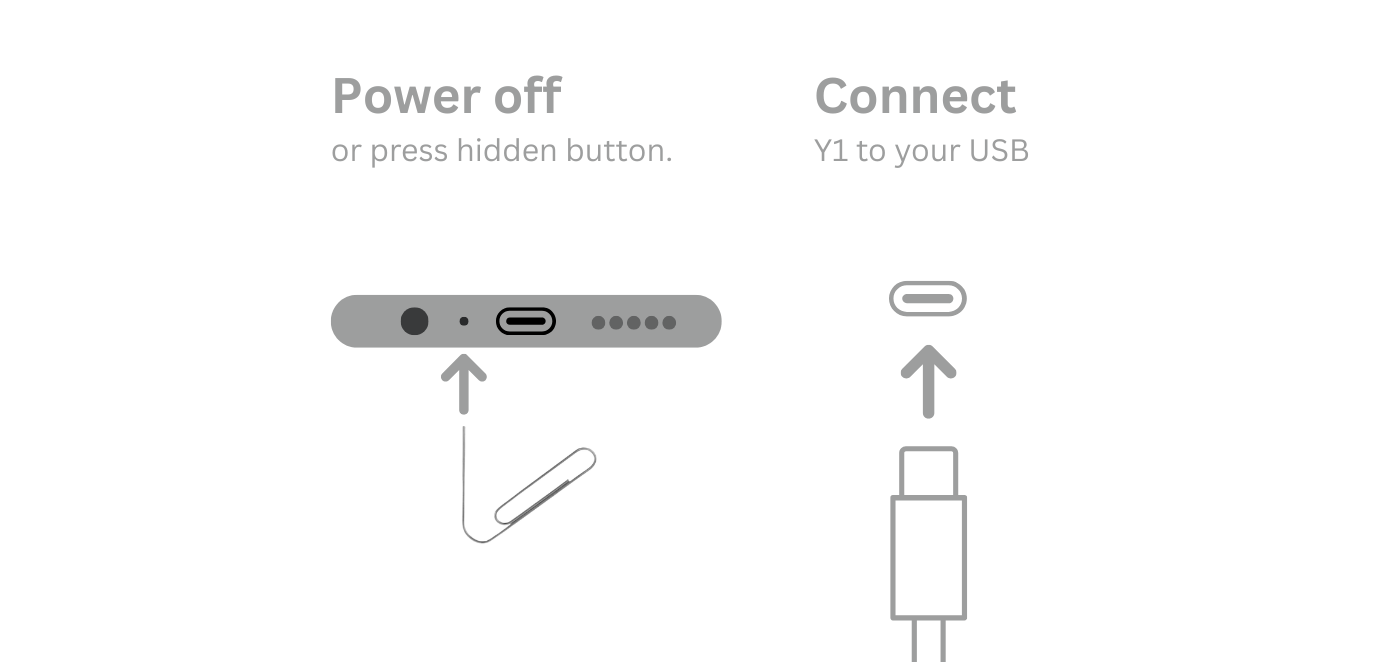
- Fully power off the correct Y1 or Y2.
- Unplug the cable, close other flash or Android tools, and start the install again.
- Connect only when Updater says it is ready.
- Use a short USB data cable directly in the computer, not a hub if possible.
- On Windows, reinstall the MediaTek driver and restart. On Linux, check USB/serial permissions.
It detected the player but the flash failed
Do not keep retrying with a different model or package. Close other tools, verify the selected Y1 or Y2, and try the matching Original Software package if the player will not start. Advanced SP Flash Tool and MTKClient recovery is available in the project files, but it is not the first route for a normal install.
Windows driver notes
Some Windows installations block the MediaTek driver because of Core isolation. Follow the current Windows security guidance before changing Memory integrity, and turn it back on when you are finished if your system allows it.
Still stuck?
When asking the community, include the model, operating system, exact Updater message, whether the player was detected, and the package/project you selected. Do not post private tokens or unrelated system files.