Restore · Innioasis Y2
Restore the Y2 with the Y2 stock path.
A Y2 restore is not a Y1 restore. Keep the model selection and package matched from the first screen.
From Rockbox or another custom software
Once the relevant Windows, macOS, or Linux setup is ready, returning to the Y2 stock interface uses the same Updater flow as installing a community project. Do not manually mix Y1 files into the player or delete system folders first.
- Open Updater on Windows, macOS, or Linux.
- Set Device Model to Y2.
- Choose Original Software.
- Select a stable Y2 release. Manual full-install packages may use
rom_y2.zip. - Click Install / Restore and wait for the extraction step.
Do not substitute: a Y1
rom.zip is not a Y2 package. If the release list looks wrong, stop and re-select Y2.Follow the connection prompt
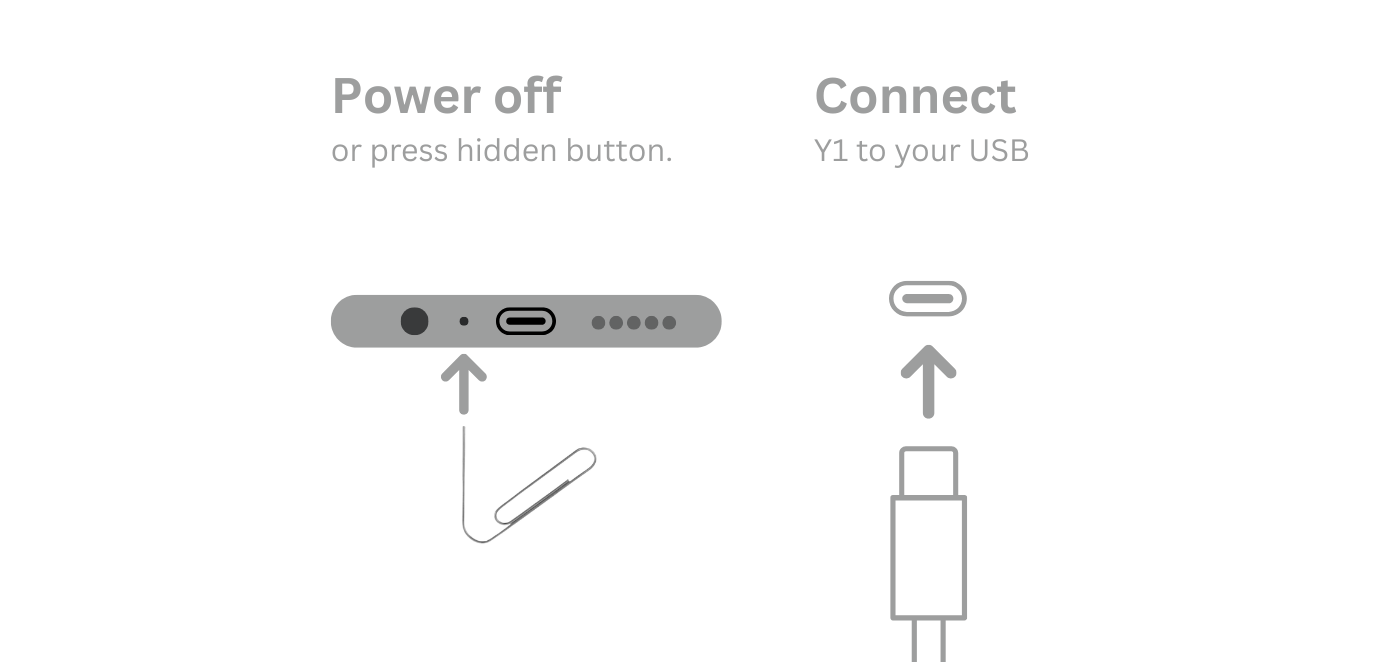
Windows, macOS, and Linux have different computer setup notes, but the player-side sequence remains the same: power off when asked, then connect the data cable at the live prompt.
- Power the Y2 fully off when Updater asks.
- Connect USB only when the app says it is ready.
- Leave the cable alone until the success message.
- Disconnect safely and start the player.
Still stuck?
Check the model, package, cable, and connection timing before trying a manual tool. The troubleshooting guide explains what a failure before USB means compared with a failure after device detection.
Keep the packages separate: a Y1
rom.zip is not a Y2 restore. If the release list looks wrong, stop and select Y2 again.