Works with all Innioasis and Timmkoo audio players. Install Innioasis Updater CE on your computer, choose your model and the software you want, then follow the prompts.
Innioasis Updater CE is the app that installs official updates and community software on your player. It keeps your music and settings, and it runs on Windows, macOS and Linux.
Windows
Download the installer, run it, then restart your PC before you open Updater CE.
If Windows stops you from running the app or won't launch it, please open Settings, click Privacy & security → Windows Security → App & browser control, and turn Smart App Control off. Smart App Control currently impacts popular applications like the Epic Overlay Service (used by Fortnite) — Updater CE is safe and verified to use. Windows won't launch the app? Help
Restart your PC after installing. The MediaTek driver is loaded at boot, so Updater CE cannot see a powered-off player until the PC has restarted. Driver help is in the Windows setup notes.
If your Mac stops you from running the app for the first time, please open System Settings, click Privacy & Security, scroll down to Security and click Open Anyway. You can also Control-click (or right-click) the app in Finder and choose Open.
Works on Intel and Apple Silicon Macs with macOS Monterey and later.
Linux
One file that runs on its own. Download it, then make it executable before the first launch.
The tar.gz and the zip are folders to unpack, not installers. Or let the launcher choose: it reads your processor, fetches the matching build, and asks whether to install or run once.
Every one of these files carries the terminal interface, so --tui opens the same app without a window. Over SSH or with no desktop, pick the run-once option. Linux setup notes
You need your player, a USB data cable that carries data (a charge-only cable cannot install), and a few minutes. Keep the cable connected until Updater CE says it is done.
Pick your model and software
Device Model: choose the model printed on the player, Y1 or Y2. Software made for one model cannot be installed on the other.
Software and release: choose Original Software, Rockbox, Solar, JJ Launcher, Inniclassic, Y2Player, or Koensayr when it is listed for your model, then pick a release. Stable is the safe choice.
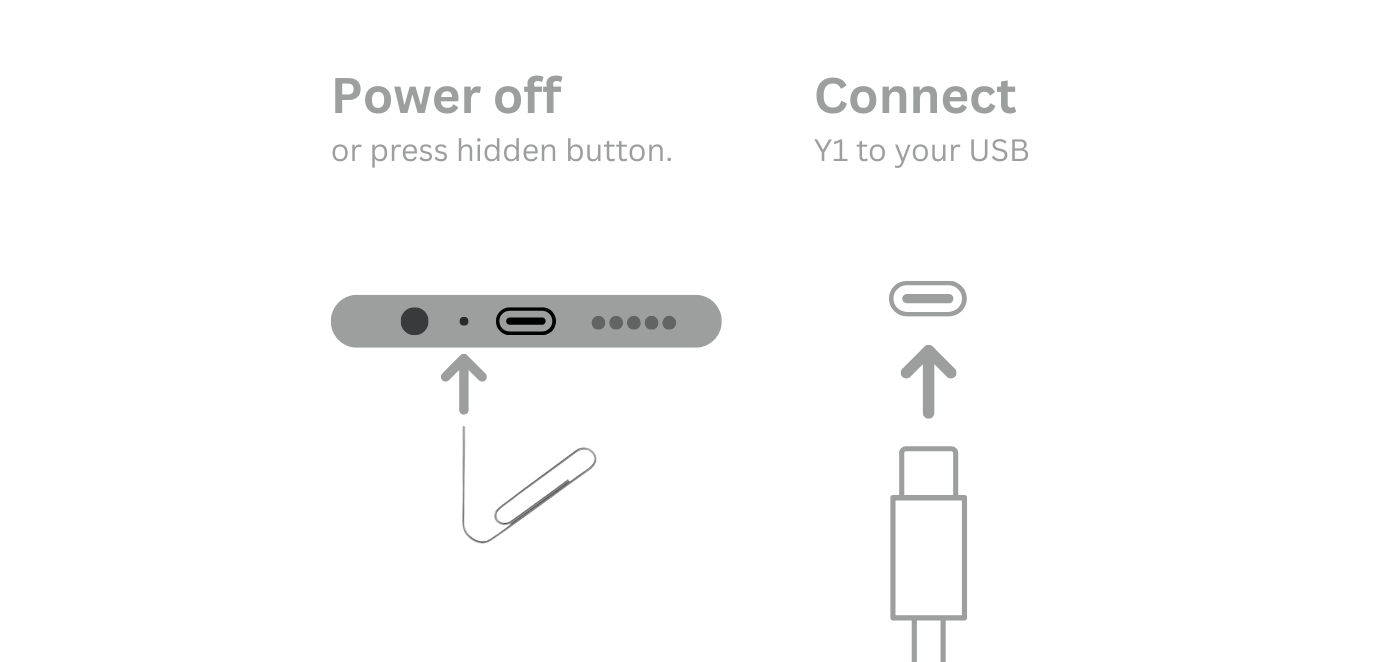
Install: click Install / Restore, power the player fully off, and connect the USB cable only when Updater CE asks.
Finish: leave the player and cable alone until the success message, then disconnect and start the player.
Y1 players that shipped with Original Software before 2.0.0 need Device Type B. Everyone else keeps the default Type A.
Follow the live Updater CE prompt for your model.
Going back to Original Software
Custom software is reversible. In Updater CE, choose your model, select Original Software, pick a stable release, then run Install / Restore the same way. There is nothing to delete by hand.
If a flash stops before the USB prompt, check the cable, platform setup, and model first. See troubleshooting for fixes and the Y1 and Y2 recovery guide for power and wheel faults. Updater CE is the recommended route; its SP Flash Tool install method is documented for the cases that need it.
Software guides by model
Open the guide for your model and the software you chose.
Innioasis Y1
Software for Y1:
Innioasis Y2
Software for Y2:
Which tool should I use?
This guide uses Innioasis Updater 2.5.1, also called Updater CE. It keeps your songs, videos, and Bluetooth pairings safe. It tells you when updates are ready. The Innioasis Universal Flash Tool wipes your player and needs manual steps. Compare the tools →
Windows won't launch the app? Smart App Control workaround
Windows Defender SmartScreen or Smart App Control can block newly downloaded community applications before signature reputations propagate. Smart App Control is currently impacting popular applications like the Epic Overlay Service (used by Fortnite) — Updater CE is safe and verified to use. Turning Smart App Control off allows Updater CE to open and run normally.
Open Settings on your Windows PC (press Win + I).
Click Privacy & security in the left sidebar, then click Windows Security.
Click App & browser control.
Under Smart App Control, click Smart App Control settings.
Set the toggle to Off to allow Updater CE to launch.
Downloaded via Edge? If Edge blocks the download itself, click the More options button (…) → Keep → Show more → Keep anyway.
Re-enabling Smart App Control later: When you want to turn Smart App Control back on, you can re-enable it via the Windows Registry under HKEY_LOCAL_MACHINE\SYSTEM\CurrentControlSet\Control\CI\Policy by setting VerifiedAndReputablePolicyState to 1 (On) or 2 (Evaluation Mode) and restarting.
Windows won't launch the app? How to turn off Smart App Control
Windows Defender SmartScreen or Smart App Control can block newly downloaded community applications before signature reputations propagate. Smart App Control is currently impacting popular applications like the Epic Overlay Service (used by Fortnite) — Updater CE is safe and verified to use. Turning Smart App Control off allows Updater CE to open and run normally.
Open Settings on your Windows PC (press Win + I).
Click Privacy & security in the left sidebar, then click Windows Security.
Click App & browser control.
Under Smart App Control, click Smart App Control settings.
Set the toggle to Off to allow Updater CE to launch.
Blocked by Edge? If Microsoft Edge blocks the download itself, click the More options button (…) → Keep → Show more → Keep anyway.
Re-enabling Smart App Control later: When you want to turn Smart App Control back on, you can re-enable it via the Windows Registry under HKEY_LOCAL_MACHINE\SYSTEM\CurrentControlSet\Control\CI\Policy by setting VerifiedAndReputablePolicyState to 1 (On) or 2 (Evaluation Mode) and restarting.