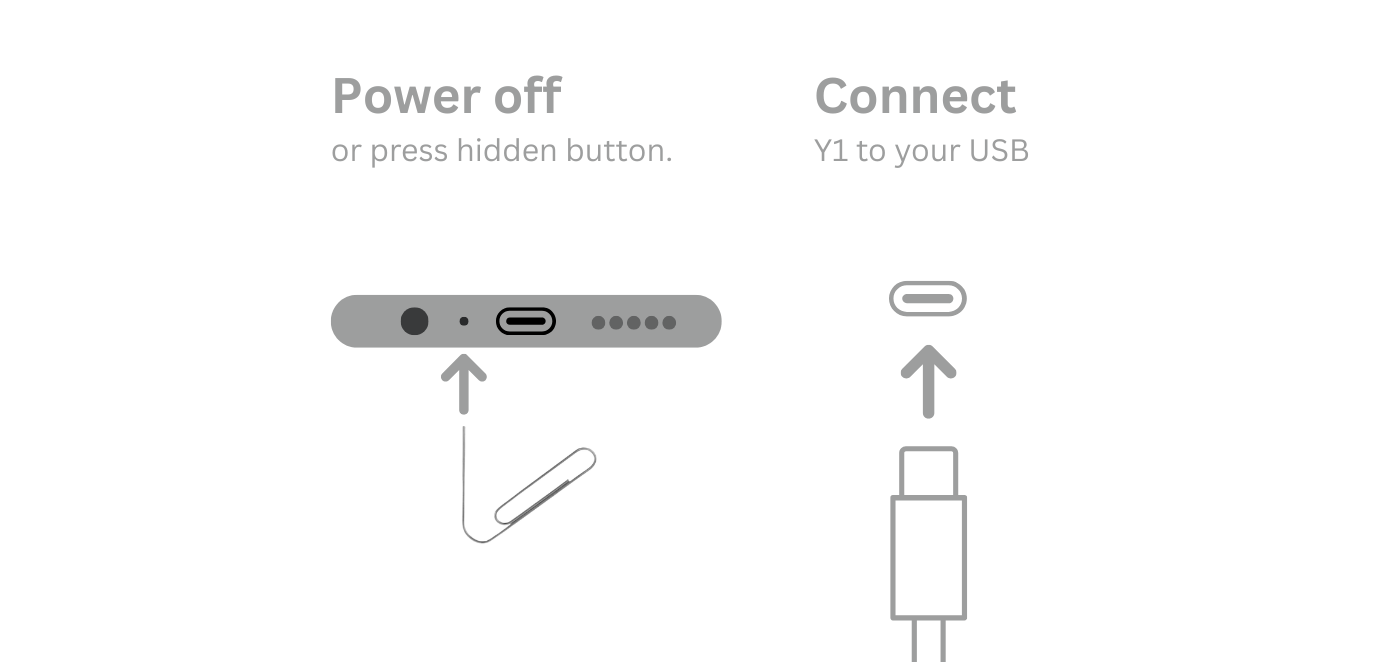
You need your player, a USB data cable that carries data (a charge-only cable cannot install), and a few minutes. Keep the cable connected until Updater CE says it is done.
Pick your model and software
Device Model: choose the model printed on the player, Y1 or Y2. Packages are not interchangeable between models.
Software and release: choose Original Software, Rockbox, Solar, JJ Launcher, Inniclassic, Y2Player, or Koensayr when it is listed for your model, then pick a release. Stable is the safe choice.
Install: click Install / Restore, power the player fully off, and connect the USB cable only when Updater CE asks.
Finish: leave the player and cable alone until the success message, then disconnect and start the player.
Y1 players that shipped with Original Software before 2.0.0 need Device Type B. Everyone else keeps the default Type A.
Follow the live Updater CE prompt for your model.
Going back to Original Software
Custom software is reversible. In Updater CE, choose your model, select Original Software, pick a stable release, then run Install / Restore the same way. There is nothing to delete by hand.
If a flash stops before the USB prompt, check the cable, platform setup, and model first. See troubleshooting for fixes and SP Flash Tool for advanced recovery.
Watch it done
Video by Frawgeeys, installing Rockbox with Updater CE. The written steps above cover your model.
Software guides by model
Open the guide for your model and the software you chose.
Innioasis Y1
Software for Y1:
Innioasis Y2
Software for Y2:
Which Updater should you use?
This guide covers Innioasis Updater CE, the community, donation-supported app that lists current firmware for you. The manufacturer's Innioasis Updater only flashes official packages you already have. Compare the two.