Rockbox · Innioasis Y1
Install Rockbox on your Y1.
This is the Y1 version of the guided Updater route. It keeps the language close to the app.
What you need
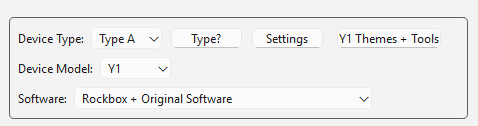
An Innioasis Y1, a charged battery, a USB data cable, and a computer with Updater installed. Type A suits Y1 players that shipped with Original Software version 2.0.0 or later; Type B suits players that shipped with an earlier version of the Original Software. Start with Type A unless you already know your player needs a Type B build.
Watch the Rockbox route
In Updater
- Open Updater and set Device Model to Y1.
- Choose Rockbox in Software. The exact project label may appear as Rockbox-Y1 in release data.
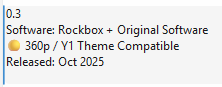
- Choose a stable release. 240p builds have the broadest older theme compatibility; 360p builds are intended for the Y1 theme path. Check the release notes when the distinction matters.
- Click Install / Restore. Wait while Updater downloads and extracts the package.
Connect the Y1
- Wait until Updater asks for the player.
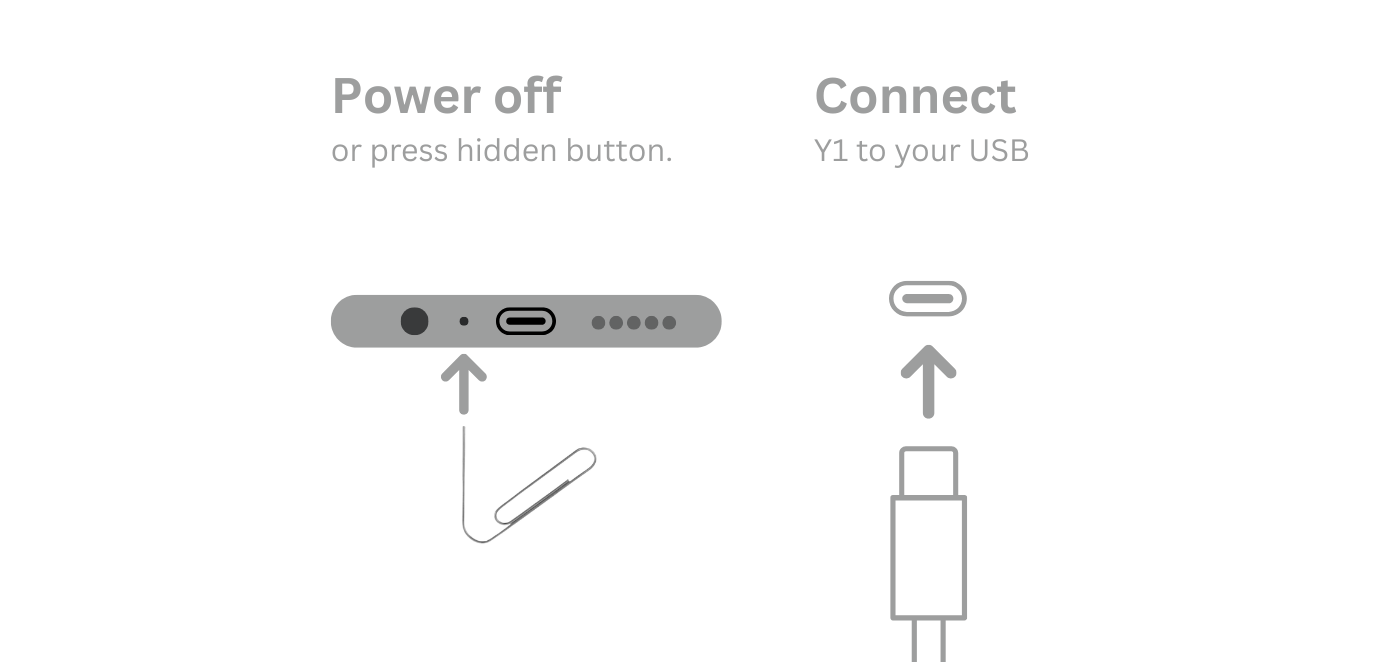
- Power the Y1 fully off. If it will not shut down, use the recovery instruction shown by Updater.
- Connect the USB data cable only when the app says to. Put the player down and do not disturb the connection.
- Disconnect only after Updater confirms success, then start the Y1.
Return to Original Software
Rockbox does not lock you into the custom software. Once Updater is set up for your computer, use it on Windows, macOS, or Linux: select Y1, choose Original Software, and run Install / Restore.
- Wait for Updater to finish preparing the stock package.
- Power off the Y1 when the app asks.
- Connect the USB data cable only at the live prompt.
- Leave the player still until the success message.
Do not use the Y2 package, and do not manually delete Rockbox files before the restore. For Type B wheel behaviour, check the matching release variant before changing device type.