Rockbox · Innioasis Y2
Install the Y2 build, not the Y1 build.
The user journey is familiar, but the model and package are different. Select Y2 first so Updater prepares the right files and install path.
Watch the Rockbox route
Before you click install
Have a charged Innioasis Y2, a USB data cable, and a computer with Updater. Do not use a Y1 release just because its name looks similar.
Model check: Y2 full-install packages may use
rom_y2.zip. The filename is a useful manual-download clue, but Updater should handle the package selection for you.Choose Y2 in Updater
- Set Device Model to Y2.
- Choose Rockbox in Software.
- Choose a release listed for Y2. If no Y2 release is listed, do not substitute a Y1 release.
- Click Install / Restore and let Updater prepare the package.
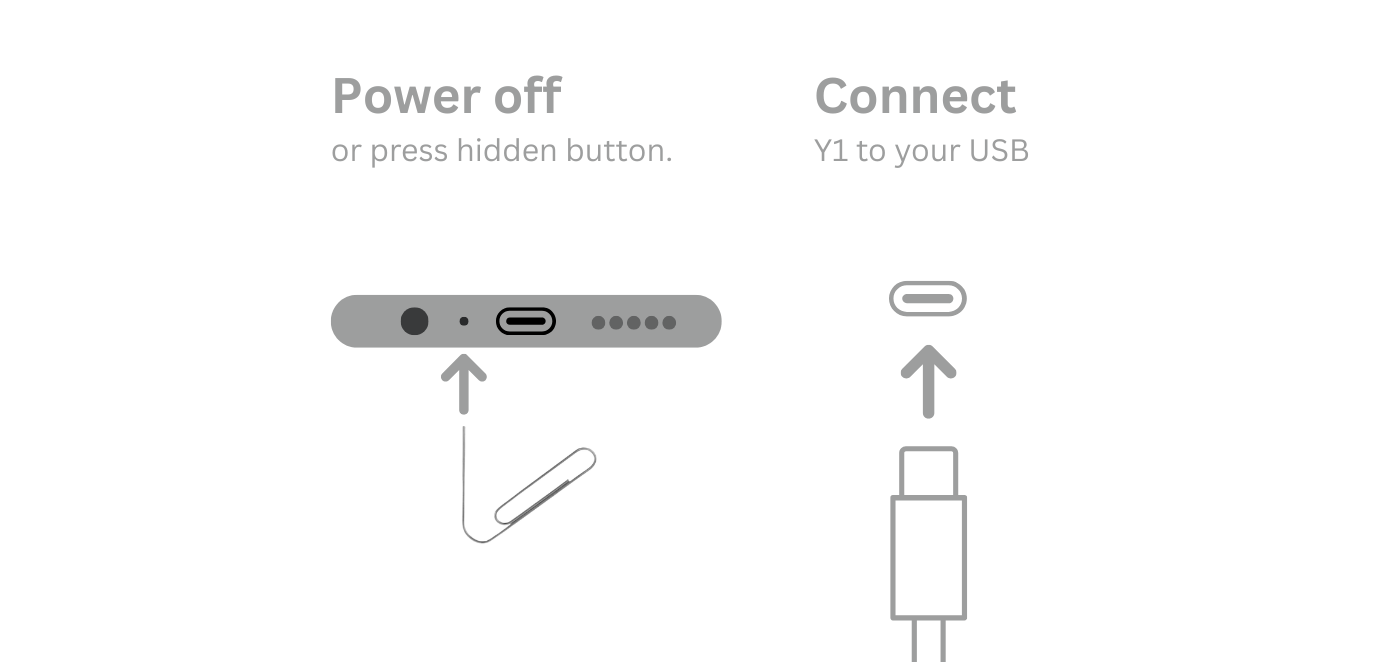
Power off, then connect
- Wait for the live connection prompt.
- Power the Y2 fully off. Use the exact reset or recovery instruction shown by Updater if normal shutdown fails.
- Connect the USB cable when asked. Leave it still until the completion message.
- Disconnect safely and start the Y2.
Return to Original Software
Rockbox does not lock you into the custom software. Once Updater is set up for your computer, use it on Windows, macOS, or Linux to go back from Rockbox or another listed project: select Y2, choose Original Software, and run Install / Restore.
- Wait for Updater to prepare the Y2 stock package.
- Power off the Y2 when the app asks.
- Connect the USB data cable only at the live prompt.
- Leave the player still until the success message.
Keep Y1 and Y2 packages separate. Do not manually delete Rockbox files first; the restore replaces the system software.